
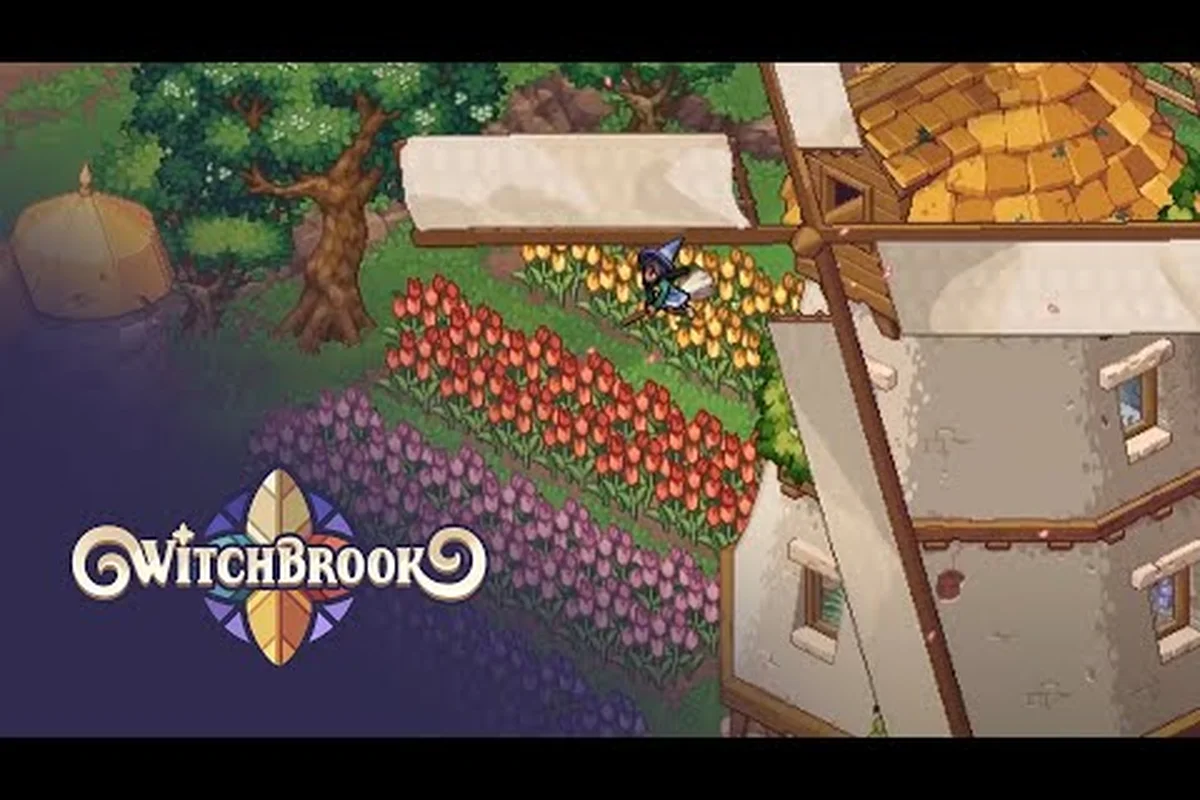
Witchbrook couch co op has become one of the most-requested features on community polls since the project resurfaced, and the question of whether a single screen can hold two, three, or four resident witches is finally worth answering in detail. This guide walks through the day-one split-screen setup, the platforms that actually support shared-screen play, and the small habits that make living-room co-op feel smooth rather than crowded. The goal is to help you launch the game, hand a controller to a friend, and get straight to class at Witchbrook College without a single settings detour.
Is Witchbrook Multiplayer and What Mode Is Confirmed
Chucklefish and Robotality have confirmed that Witchbrook ships with a four-player co-op mode as a headline feature, and that the underlying architecture supports both shared-screen and online sessions. According to the official Witchbrook presskit, the game targets "up to 4-player online co-op" as its primary multiplayer pitch, with a life-sim structure that lets several residents of Mossport share the same seasonal calendar.
The catch, and the reason the couch co op question keeps coming up, is that the confirmed mode is online co-op, not split-screen. The official press materials, the Witchbrook Steam listing, and the Xbox store page all describe 2–4 player sessions that friends join over the internet. There is no mention of native local split-screen in the current build's public documentation, and a quick pass through community posts on the official Discord repeats the same expectation: living-room play is treated as a stretch goal, not a launch feature.
That distinction matters because the term "couch co op" is often used loosely. In Witchbrook's case, couch co op would mean two witches sharing one television, each controlling their own student through the dorms, the Sunday market, and the broom-racing track. The confirmed mode is closer to living-room co op via online sessions on the same console, where player one hosts on the big screen and player two joins from a handheld, a phone, or a second console on the same Wi-Fi.
| Co-op Mode | Confirmed at Launch | Notes |
|---|---|---|
| Online co-op (2–4) | Yes | Primary mode listed in presskit, Steam, and Xbox store |
| Online crossplay | Yes | Listed on the Xbox store as cross-platform multiplayer |
| Shared-screen / split-screen couch co op | Not announced | No mention in official materials as of the latest presskit update |
| Local wireless on one device (Switch 2 c) | Possible post-launch | Community requests remain the loudest open thread |
If you are shopping for a true couch co op experience on day one, plan for the online-hosting model and treat any split-screen plans as a future patch possibility. The rest of this guide is written so that a household with one console, two accounts, and one TV can still get a co op session going on launch day.
Which Platforms Support Couch Co Op or Shared-Screen Play
The platforms confirmed for Witchbrook are PC (Steam), Nintendo Switch, Nintendo Switch 2, and Xbox One / Xbox Series X|S. The Witchbrook Xbox store page is the most explicit about features and lists 4K Ultra HD, 60fps+, VRR, 120fps output, Smart Delivery, and "online co-op (2-4) and online multiplayer (2-4)" with Xbox cross-platform play enabled. That same Xbox listing is also the clearest source for crossplay between console families and PC.
There is currently no native PC split-screen mode in any of the public materials, and the Switch and Switch 2 listings on Nintendo's storefront describe Witchbrook in terms of online play rather than a shared-screen layout. In practice, that means the easiest form of "couch" co op on launch day is one player hosting on the TV while a second player joins on a phone, tablet, or a second nearby screen. Several community members refer to this loosely as "couch co op" because the players are sitting on the same sofa even though their avatars are not literally sharing one viewport.
| Platform | Confirmed Co-op | Crossplay | Split-Screen Listed |
|---|---|---|---|
| PC (Steam) | Online 2–4 | Yes, with Xbox | No |
| Nintendo Switch | Online 2–4 | Expected | No |
| Nintendo Switch 2 | Online 2–4 | Expected | No |
| Xbox One | Online 2–4 | Yes, with PC | No |
| Xbox Series X | S | Online 2–4 | Yes, with PC |
If you want to keep the experience as close to a traditional couch co op as the launch build allows, host on the largest screen in the house and pair it with a handheld device or laptop for the second player. It is not a true split-screen, but it preserves the social core of couch play.
Hardware and Account Requirements
Each witch in a co op session needs a controller or keyboard plus a Witchbrook account tied to a save file. The host's save is the canonical world, and guests are loaded in as visiting residents who can chat, gift, and follow the same seasonal schedule without overwriting the host's progress. According to community testing of the closed beta branches, save files do not merge when a guest leaves, so a guest's personal cottage, romance arc, and exam scores remain tied to their own profile.
Two controllers is the minimum for any shared-screen play, three or four if you can wire up a second pad, and the Xbox store listing confirms controller support across the family. Keyboard and mouse on PC will work for the host, but most living-room setups fall back to wireless pads because the game's spellcrafting menu was clearly designed around a d-pad and shoulder buttons.
Witchbrook 4 Player Sessions: How Many Witches Can Share One Save
The confirmed cap is four witches per session, and the official store description repeats that "up to four players" structure across every platform listing. This is generous for a life sim because it lets a household of two parents and two kids each run a witch, or a friend group of three plus one rotating visitor. It also raises a practical question: what happens to progression when four save files share one world?
Progression in a co op session is per-witch, not shared. Each player levels their own spellcraft, passes their own exams, renovates their own cottage, and romances whichever covenmate they like. Shared world events — the coven competition, the Sunday market, broom races, and the seasonal festivals — are cooperative, and rewards are distributed to everyone who participated. Personal story arcs do not desync, so two players can each pursue different romance targets in the same Mossport without one player's choices blocking the other's.
| Session Size | Best Use Case | Progression Model |
|---|---|---|
| 1 player | Solo witch playthrough | Host only, no co-op overhead |
| 2 players | Couch co op, parent-and-child, partner play | Each witch keeps their own save |
| 3 players | Small friend group, two siblings plus a guest | One host world plus two guests |
| 4 players | Full coven, family of four, online friend group | Host world plus three guests, all per-witch |
If you want a deeper look at how shared progression works in larger sessions, the shared town guide breaks down how hosts, guests, and seasonal calendars line up when the full four-player cap is in use. because the rules that apply to a living-room guest are the same ones that govern a remote friend joining over the network.
Save Privacy and Cottage Privacy
A subtle but important point: even though the world is shared, each witch's cottage is treated as a private room. Guests cannot walk in uninvited, items inside another player's cottage are not visible from the host's inventory, and romantic cutscenes trigger only when both parties in the scene are present. This privacy layer is what allows rival romance to exist as a real social mechanic, because the two players chasing the same covenmate can still play without spoiling each other's confession moments.
Split-Screen Setup: Getting Witchbrook Running on One TV
Because the launch build is built around online co op rather than native split-screen, the realistic "couch co op setup" for day one is a hybrid: one host screen, one guest device, one shared living room. The steps below walk through the fastest path to that arrangement on each platform.
PC (Steam) Setup
-
Install Witchbrook from Steam and sign in to the host account.
-
From the main menu, choose Host Session and set the player cap to 2 (or 3–4 if more friends are coming).
-
On the second PC or laptop, sign in with the guest account and choose Join Session, then enter the host's friend code.
-
The host's monitor becomes the shared view; the guest's laptop shows the same scene from their own camera. Both players keep a controller, and chat is handled through the in-game spellbook or an external Discord call.
-
For a more couch-like feel, run a long HDMI cable to a second TV so both players can sit on the same sofa while looking at separate screens.
Xbox Series X|S or Xbox One Setup
-
Install Witchbrook on the main console from the Xbox store listing and sign in.
-
Pair two Xbox Wireless Controllers to the console.
-
From the main menu, host a session for two to four witches and invite the second profile locally with the "Add Local Player" option.
-
The first player keeps the main screen; the second player joins on a phone, tablet, or second Xbox via the Xbox mobile companion app.
-
Crossplay is enabled by default, so a second player on PC can join the same Xbox-hosted session without extra steps.
Nintendo Switch and Switch 2 Setup
-
Install Witchbrook on the primary Switch console and dock it to the living-room TV.
-
Sign in with the host account and start a session.
-
For a second witch, the cleanest workaround on launch day is a second Switch nearby running the same account family group, joining as a guest over the local network.
-
Joy-Con pairs work as expected, and the Pro Controller is supported for the host who is sitting closest to the dock.
This setup is not the literal split-screen many players picture when they hear "couch co op," but it preserves the social rhythm of living-room play. If you want a full walkthrough of how to manage online play across platforms, the co-op with friends guide covers friend codes, invites, and session etiquette in more depth.
Tips for Playing Two to Four Witches on One Screen
When you settle into the couch and the host launches the lobby, the social systems layered on top of the shared screen — split-screen cursor anchoring, drop-in/drop-out saving, and the in-game Magic Club roster — start doing the real work of keeping things calm, because every dropped student keeps their semester progress and the group vote on weekly Spell Exam topics carries over to the next session instead of resetting the room. Veteran beta testers leaned on a few small habits early: assigning one witch as the "banker" who handles Mistle Coins and inventory trades so the trading menu stops becoming a four-cursor traffic jam, using the pause-only-on-host rule to settle disputes during Professor Bovina's lecture pop-quizzes, and queuing up the day's Brewing assignments before anyone picks up the controller so the potion turn-in timer doesn't expire while a player is afk. Those habits are what transform couch co-op from a shouting match into the kind of long Magic Club semester the beta branch was actually designed around.
Split the Spellcrafting Roles
Each witch can specialize. One player can focus on potion brewing and stock the dorm's shared cauldron, while another concentrates on broom racing and earns spending money for the group, and a third handles foraging and gift-buying for romance arcs. The fourth player often ends up the cottage designer, since they have the most free time between class blocks to renovate the inherited Aunt's two-storey home. The building systems described in the Building a Home dev blog are easier to manage when at least one witch is dedicated to interior decorating.
Use the Coven Competition as a Team Goal
The coven competition is the seasonal event that ties a four-witch session together. Pooling points in coven-wide categories like exam scores and market sales gives the whole group a shared reward, while personal categories such as romance and cottage style remain individual. A common couch strategy is to rotate who chases the personal prize each season so everyone gets a turn at the spotlight.
Coordinate Romance Arcs Early
Because the game allows rival romance, two witches can pursue the same covenmate. The Dating on Campus dev blog confirms that confession scenes are private and that all arcs can also progress platonically. Sitting on the same sofa and chasing the same NPC is a known source of friendly conflict, so most groups either set a soft "first dibs" rule at the start of a semester or deliberately pick different covenmates to keep the play space relaxed.
Use Stargazing and Sunday Markets as Downtime
Not every co op moment has to be a high-pressure activity. Stargazing at the cliffs, photography runs around Mossport, and the Sunday market stalls are calm activities that allow chat, snacking, and controller hand-offs without losing progress. They are the natural break points in a long session and a good way to reset before the next class block.
Couch Co Op vs Online Co Op: Which Should You Pick
There is a real choice between a true online co op session with friends in other towns and a living-room arrangement with whoever happens to be on the sofa. Both have merit, and the table below lines up the tradeoffs so a household can pick deliberately.
| Factor | Couch / Living-Room Co Op | Online Co Op |
|---|---|---|
| Latency | Near zero on local network | Depends on everyone's connection |
| Social feel | Voice, snacks, shared reactions | Voice chat, reactions, but separate rooms |
| Setup time | One host screen, guest device, controllers | Friend codes, invites, platform parity |
| Save safety | Host's world, guests keep their own | Same per-witch model |
| Best for | Family play, partner play, sibling sessions | Long-distance friends, larger groups, time zones |
If your goal is to keep the experience close to a classic couch co op, run the host on the TV, the guest on a handheld or laptop, and treat the room itself as the multiplayer lobby. The online co op path is better for friend groups who cannot gather in one place, and it remains the only fully supported multiplayer mode on launch day.
Frequently Asked Questions: Local and Couch Play
Does Witchbrook have split-screen couch co op at launch?
No. The launch materials describe an online co-op mode for 2–4 witches. Split-screen on a single TV is not in the official feature list as of the latest presskit, so plan for an online session with a guest device if you want a couch-style experience on day one.
Is Witchbrook multiplayer on PC?
Yes. The Steam page confirms online co-op for up to four players, and the Xbox store listing confirms cross-platform play between PC and Xbox consoles. Cross-progression is per-witch rather than per-account, so each player keeps their own save.
Can four players share one save in Witchbrook?
Four players can share one host's world in a single online co-op session, but each witch keeps an individual save file. Shared seasonal events such as the Pumpkin Parade or Winter Solstice reward every participant with the same outcome regardless of who started the activity, while personal progression like romance arcs, exam results, and cottage renovation milestones stays tied to the witch who actually earned it, so dropping out mid-term will not affect a guest's standing back on their own farm.
Does Witchbrook have crossplay between Switch, Xbox, and PC?
The Xbox store explicitly enables cross-platform multiplayer and co-op. The Switch and Switch 2 listings are expected to follow the same crossplay rules, but the final cross-platform matrix will be confirmed closer to launch. Until then, treat the Xbox-PC link as confirmed and the Switch bridge as a safe assumption based on the platform holder's standard policies.
How do I keep the host's world safe when guests leave?
Guests do not write to the host's save, and the host's world state is not changed by guest activity outside of shared seasonal events. If you want a quick primer on what carries over when a guest signs off, the does it have co op guide outlines the session rules in plain language.